Training lesson
Record a customer inquiry
Add a contact, record the call, and notify the employee who handles the account.
Follow the example, then complete a different inquiry in the simulation. Open the practice simulation
Find the company and check the contact
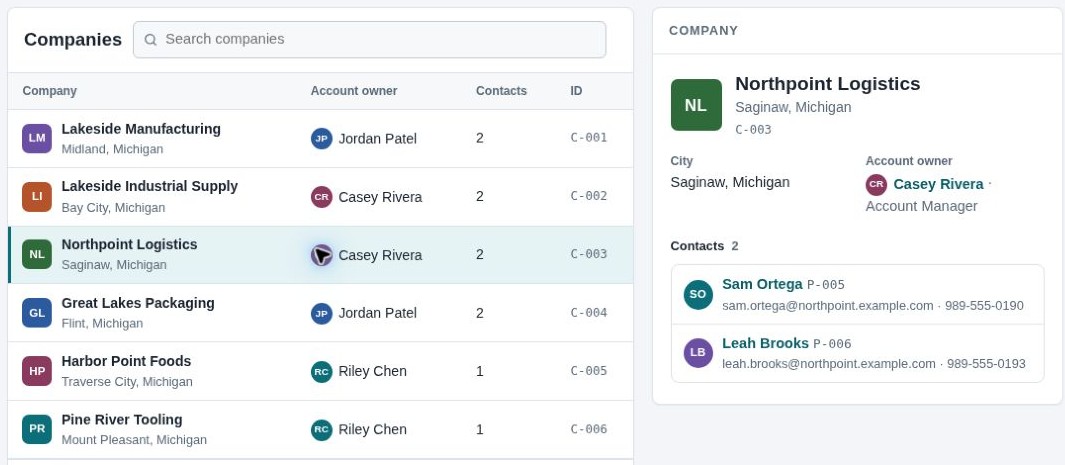
Open Companies in the left sidebar. Search for Northpoint Logistics and check its Saginaw location and account owner, Casey Rivera.
Next, open Contacts and search for Alex Chen. Compare the company and email before using a matching record.
No matching Alex Chen record exists in this example. Add a new contact.
Add the contact
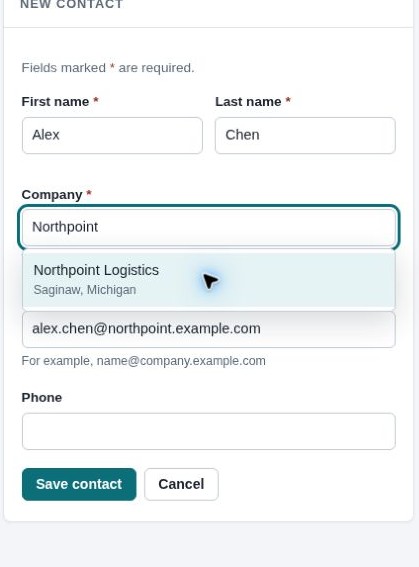
In Contacts, select Add contact and enter Alex’s details. Choose Northpoint Logistics from the company results to create the link.
Email: alex.chen@northpoint.example.com
Company: Northpoint Logistics
Select Save contact, then check that the saved record links to the correct company.
Record the call
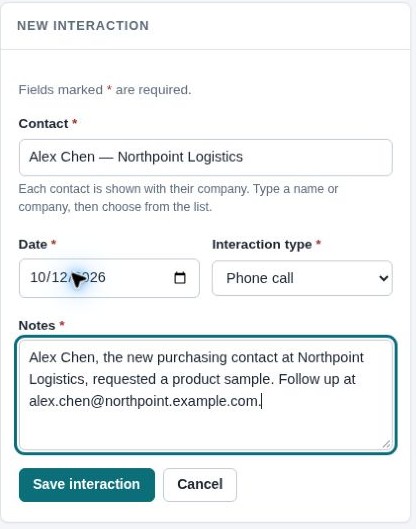
Open Interactions and select New interaction. Choose Alex Chen as the contact, set the type to Phone call, and use the date from the message.
The note must include:
- Who called and which company
- What they requested
- How to reach them for follow-up
Check the contact link and select Save interaction. The call is saved in Interactions. Include enough detail for the owner to act.
Notify the account owner
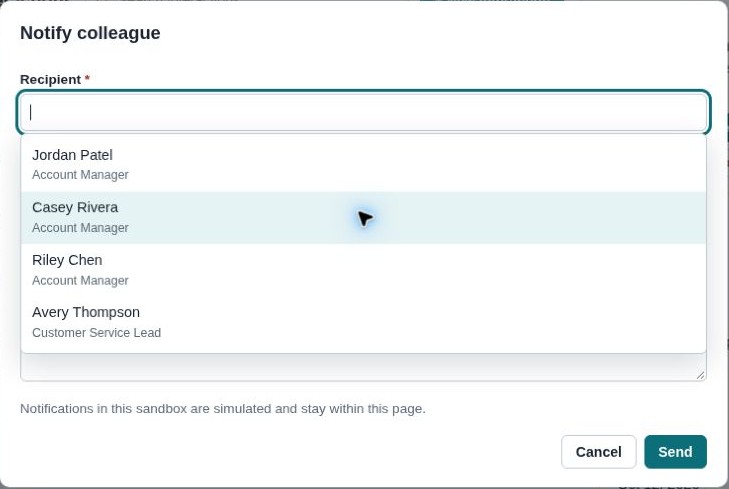
Open Interactions in the sidebar and select Alex’s saved call. Select Notify colleague and choose the account owner, Casey Rivera.
Give Casey a clear next action:
“Alex Chen at Northpoint Logistics requested a product sample. Contact information and the call note are saved in the CRM. Please follow up.”
Select Send. In Notifications, check the recipient and linked call.